Product · Edit a deck
Improve a PowerPoint with AI: import it, change it, review every edit
Import your .pptx, mark what should change, then accept or discard each AI edit. Restore an earlier version of the deck whenever you need it.
Free plan, no card needed
- Importing creates a new document, leaves your file unchanged and uses no credits
- Four ways to change it: by hand, in the chat, by marking an area, or with Ask AI
- Area and object edits wait for Accept or Discard; a version is saved before every AI change
- Slides come back as editable text, shapes and pictures; notes and slide size are kept
Step by step
How it works
Open your file
In the library choose “Open PowerPoint, PDF or Word” and pick a .pptx up to 30 MB. The AI rebuilds each slide as editable elements in a new document and leaves your original file as it is.
Mark what should change
Drag a rectangle over part of a page and click “Shorter”, “Clearer”, “As chart” or “Polish”, or describe the change. Type “@” in the chat to point at a page, or select an object and press “Ask AI”.
Review the change
After an area or object edit, the “Review change” bar offers “Accept” or “Discard”. Discard returns the whole document to the state before. A small dot in the page strip marks pages the last AI request changed.
Export the result
Open Export and choose PowerPoint. Slides arrive as editable text boxes, shapes and pictures, with speaker notes in the notes pane. Open the file once in PowerPoint and look it over before you send it.
In the app
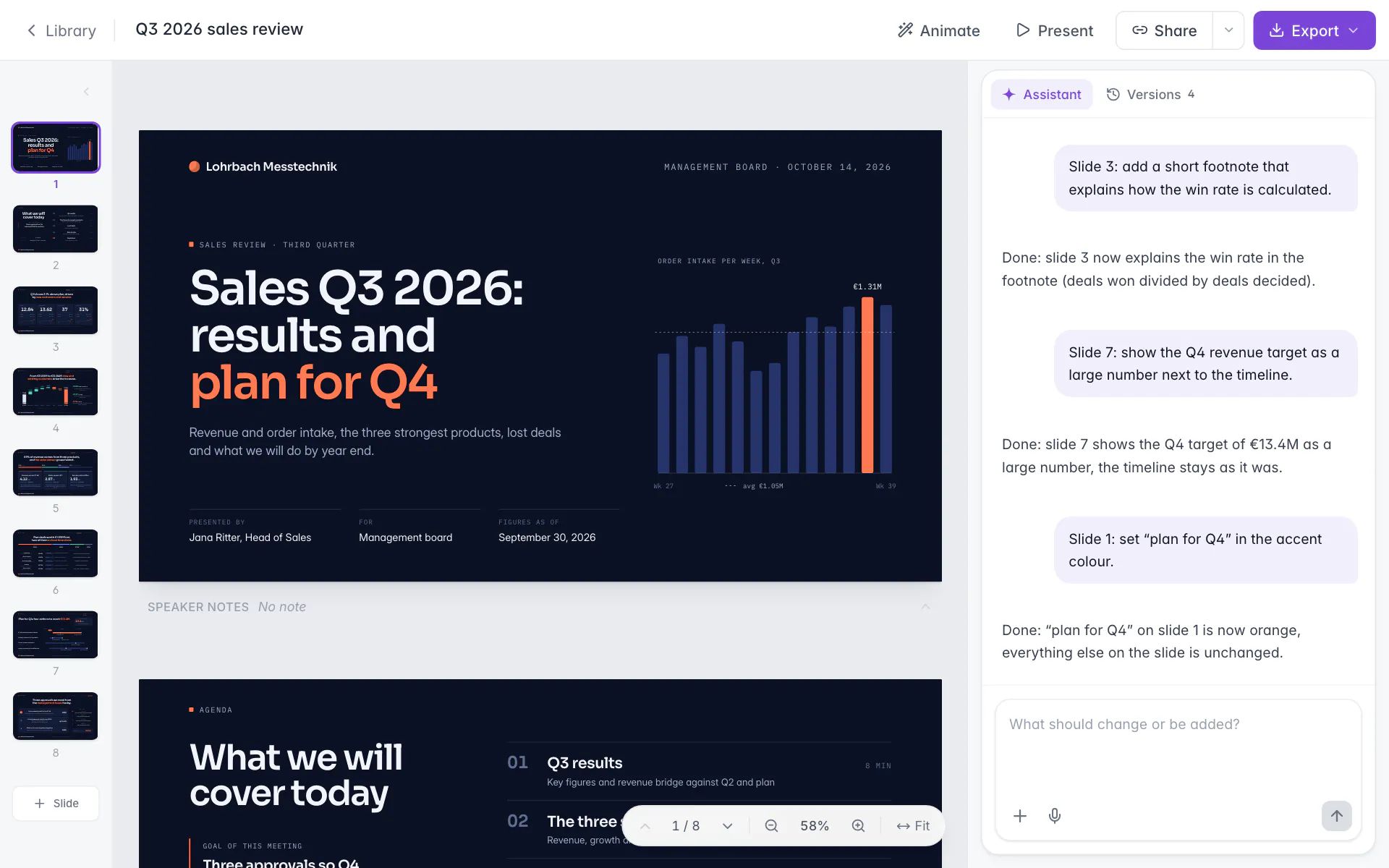
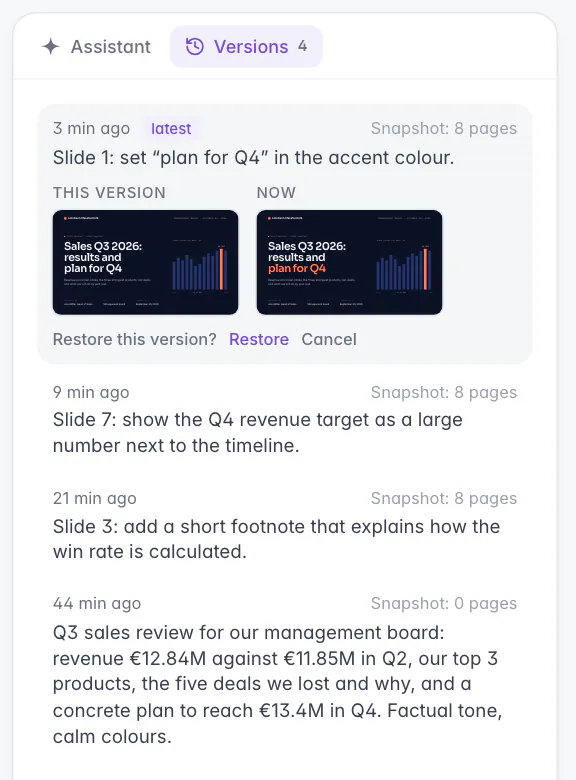
Screens from Slaide with an invented company and invented figures.
Spec sheet
What to expect, in plain terms.
Taken from the product and its help center.
Checked 22 October 2026
Security and privacy at Slaide- Files you can open
- Pages per import
- Animation
- Changing a number
- Notes and slide size
- Review and undo
- Versions
- Translation
Read all 8 points in the spec sheet
- Files you can open
- A .pptx, .pdf or .docx up to 30 MB.
- Yes
- Pages per import
- Free: the first 3. Plus: up to 12. Pro and Max: up to 150. The editor says how many pages came in.
- Yes
- Animation
- Animate choreographs the whole deck in one AI run, in the style you pick. Entrances and transitions export as PowerPoint animations.
- Yes
- Changing a number
- Each slide is rebuilt as editable text, shapes and pictures. When a number changes, ask the AI in the chat for an update.
- Yes
- Notes and slide size
- Speaker notes and slide size are kept on import; the exported .pptx carries the notes in its notes pane.
- Yes
- Review and undo
- “Review change” with Accept or Discard. Ctrl+Z or Cmd+Z undoes up to 60 steps per page while the editor stays open.
- Yes
- Versions
- Saved before every AI change: up to 50 versions and 100 MB per document. Restore brings back the whole document, after saving a backup first.
- Yes
- Translation
- Ask in the chat and name the language. Check every page of the result afterwards.
- Yes
Improving a PowerPoint with AI starts with one decision: rework the file in a tool that rebuilds it, or inside PowerPoint itself. The AI takes the first route. It opens your .pptx as a new document, lets you change parts of it by hand or with AI, shows each area edit before you keep it and saves versions to go back to. Below is what that covers and what the import brings back.
What can you improve in an existing PowerPoint?
Text, titles, charts, look, language and motion. Each has its own route in the editor.
| Job | How in the editor |
|---|---|
| Shorten or clarify one block of text | Drag a rectangle over it and click “Shorter” or “Clearer” |
| Tidy the look of one area | Mark the area and click “Polish” |
| Turn a table or list of numbers into a chart | Mark it and click “As chart” |
| Rewrite titles on every slide | Ask in the chat, for example for action titles that state each slide's point |
| Add, move, duplicate or delete slides | Ask in the chat, or use the page strip on a wide screen |
| Translate the deck | Ask in the chat and name the language |
| Restyle in your brand | Ask in the chat, for example “Restyle the whole presentation in our brand” |
| Add motion | “Animate” (wand icon) |
Translation is a chat request that names the language. Animate is one AI run that choreographs the whole deck in the style you pick: Keynote, Balanced (the default) or Minimalist. It leaves text, images and layout as they are. Running it again replaces the motion on every slide, and the previous state is saved as a version. Since 10 October 2026, entrances and transitions export as PowerPoint animations.
To bring an old deck into your current design, read how to apply a template to an existing presentation and how your own template works in the editor.
How do you open a PowerPoint in the editor, and what comes back?
Choose “Open PowerPoint, PDF or Word” in the library and pick a .pptx up to 30 MB. You can also attach the file in the start box: the first .pptx you attach becomes the document to edit, while an attached PDF stays source material. Every import creates a new document, leaves your original file unchanged and uses no credits.
How much comes in depends on your plan: the first 3 pages on Free, up to 12 on Plus and up to 150 on Pro and Max. The editor says how many pages came in, for example “3 of 30 pages imported”.
What comes back is a rebuild: each slide becomes editable text, shapes and pictures, and the speaker notes and slide size are kept. When a number changes, you ask the AI in the chat for an update. Fonts embedded in your file are used.
Word and PDF files open too. A Word file is turned into slides first: headings become slides and long text continues on follow-up slides. A PDF with a text layer is rebuilt from the PDF, and scans go through text recognition. The PDF to PowerPoint page covers that route.
How do the four ways to change a deck differ?
| Way | Best for | Credits |
|---|---|---|
| By hand | A typo, a color, a moved logo | None |
| The chat | Changes across pages, translation, restyling, adding or reordering pages | AI request |
| Marking an area | One block of text or one region, with the chips “Shorter”, “Clearer”, “As chart” and “Polish” | AI request |
| “Ask AI” (Ctrl+K or Cmd+K) | One selected object | AI request |
By hand covers text, shapes, images, tables, position and page background. For a change on every page, such as a new accent color, ask in the chat. In the chat, “@” picks a page and adds a prefix such as “Page 5:”. Hand edits and the page-strip actions use no credits; whatever you ask the AI to do is an AI request, and AI requests use credits on a paid plan.
How do you stay in control of AI changes?
Review before you keep, undo while you work, restore when you need to go back. After an area or object edit, a “Review change” bar offers “Accept” or “Discard”, and Discard returns the whole document to the state before the edit. While an AI request runs, the page is read-only, and Esc stops it. Pages changed by the last AI request carry a small dot in the page strip, so you see where to look.
For smaller steps, Ctrl+Z or Cmd+Z undoes up to 60 steps per page while the editor stays open.
Versions reach further back. The editor saves a version before every AI change, page action and round of hand edits, and keeps up to 50 versions and 100 MB of history per document; the oldest go first. The Versions tab is in the desktop editor. “Restore” replaces the whole document and first saves a “Backup before restore”, so a restore can itself be undone. The owner can also use “Rewind” to go back to the state before a chat message. Restoring uses no credits.
What survives the round trip?
When does this route fit, and what does Copilot in PowerPoint do?
The AI is a good fit when a whole deck needs rework, you want to see an edit before you keep it and you want a way back. A quarterly review that has grown over several quarters is a typical case; the quarterly business review template shows a clean structure to compare it with. Starting from nothing instead? See the AI PowerPoint generator.
For comparison, as of October 2026, Microsoft documents that Copilot in PowerPoint can add slides, update existing content, reorganize sections, improve flow and restyle a presentation with a brand kit. The same page warns that large or complex presentations may exceed system limits and asks you to review AI-generated content. The work happens in the program, on your file. The comparison of ChatGPT, Claude and Copilot for PowerPoint goes further. This site is published by Slaide.
Source, as of October 2026: Microsoft on editing with Copilot in PowerPoint.
Brief
Start with this brief
Copy it or open it in the editor. Replace the highlighted parts, or attach your files and the facts come from them.
Improve the open presentation for [audience, for example the management board]. Keep our fonts, colors and logo. Rewrite every slide title as an action title that states the conclusion. Shorten any slide with more than [40] words of body text. Turn the table of [figures] on page [5] into a bar chart and keep every number exactly as it is. Do not change any figures, names or dates. Add speaker notes of [2 to 3] sentences to every slide. Then tell me which slides you changed and what you assumed.
FAQ
Frequently asked questions
Can AI improve an existing PowerPoint?
Yes. Open your .pptx in the editor, up to 30 MB. It becomes a new document, your original file stays unchanged and importing uses no credits. You then change it by hand, in the chat, by marking an area or with Ask AI. Area and object edits wait for your Accept or Discard, and a version is saved before every AI change.
Can I choose which slides the AI changes?
Yes. Drag a rectangle over part of a page, select an object and press Ask AI, or type @ in the chat to pick a page. Pages changed by the last AI request get a small dot in the page strip. Ask in the chat for a change that touches every slide, such as new titles or a new accent color.
Can I undo what the AI changed?
Yes, in three ways. Discard in the Review change bar returns the whole document to the state before. Ctrl+Z or Cmd+Z undoes up to 60 steps per page while the editor stays open. Versions reach further back: up to 50 are kept, and Restore replaces the whole document after saving a backup first.
What does the import keep, and what about animations and numbers?
Each slide is rebuilt as editable text, shapes and pictures, and speaker notes and slide size are kept. When a number changes, you ask the AI in the chat for an update. Motion comes from Animate, which choreographs the whole deck in the style you pick. On a paid plan, slides you leave unchanged are normally taken from your original file on export.
Does improving a deck use credits?
Importing, hand edits, restoring a version and exporting use no credits. Requests to the assistant, such as shortening text, translating or restyling, are AI requests and use credits on a paid plan. On Free, the first 3 pages of a file come in, and exports carry a small Made with Slaide mark; Plus, Pro and Max export without it.
Can the AI translate my presentation?
Yes, by a chat request that names the language. Read through every page of the result afterwards.
Keep reading
Build the first version now
The free plan includes one document with its first three pages built, no card needed. The AI plans, writes and designs it; you edit and export.
Build your first deck freeFree plan, no card needed