Product · Templates
Use your own PowerPoint template with AI, in your company design
Open your .pptx and build new slides in your own fonts, colors and layouts, or set up a brand kit. See what the AI reads from your file, plan by plan.
Free plan, no card needed
- Open your .pptx up to 30 MB, or set a brand with colors, fonts, logo and tone of voice
- Reads theme fonts and colors, each slide's layout, repeating texts such as footers, and notes
- New and changed slides come back as text boxes, shapes and pictures in your design
- On paid plans, unchanged slides are normally taken straight from your original file
Step by step
How it works
Open your .pptx
In the library choose “Open PowerPoint, PDF or Word” and pick your template or a deck in your design, up to 30 MB. Or attach the .pptx in the start box: the first one you attach becomes the document to edit.
Or set up a brand
Open “Brand” in the top navigation and add colors, fonts, a logo and a tone of voice, or enter your website address and click “Read brand”. Nothing is saved until you click “Accept brand”.
Describe the deck or the change
The AI keeps your typography, colors and logos unless you say otherwise, and builds new slides in the same design. Your instruction in a request always wins over the brand.
Export the finished deck
Open Export and download the .pptx. On a paid plan, slides you left unchanged are normally taken straight from your original file, animations included.
In the app
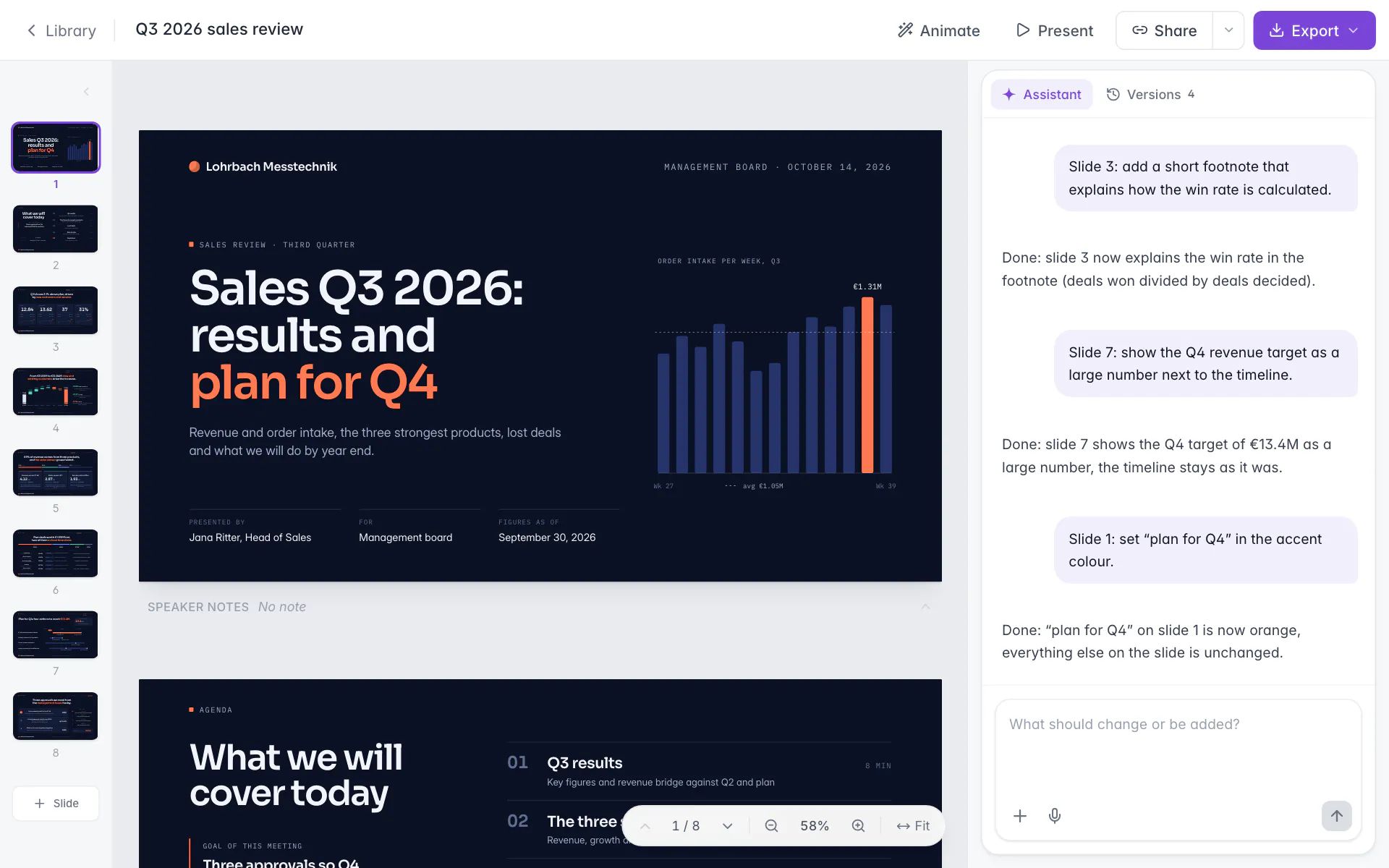
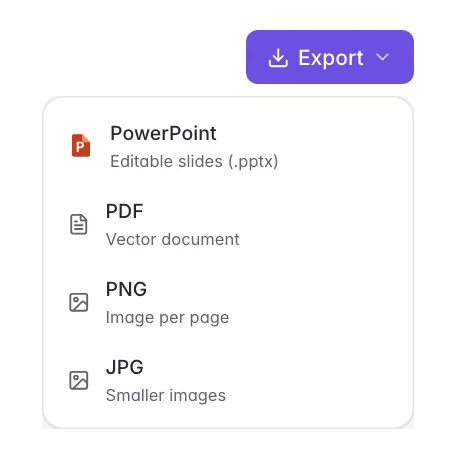
Screens from Slaide with an invented company and invented figures.
Spec sheet
What to expect, in plain terms.
Taken from the product and its help center.
Checked 22 October 2026
Security and privacy at Slaide- Template file
- What is read
- New and changed slides
- Slides taken from the file
- Unchanged slides
- Brand
- Fonts
Read all 7 points in the spec sheet
- Template file
- A .pptx up to 30 MB, opened from the library or attached in the start box.
- Yes
- What is read
- Text, pictures, shapes and lines as editable elements; theme fonts and colors, each slide's layout, repeating texts such as footers, speaker notes.
- Yes
- New and changed slides
- Text boxes, shapes and pictures in your design: the AI keeps your typography, colors and logos unless you say otherwise.
- Yes
- Slides taken from the file
- Free: the first 3. Plus: the first 12. Pro and Max: the whole file, up to 150.
- Yes
- Unchanged slides
- On paid plans the export normally takes unchanged slides from your .pptx, animations included.
- Yes
- Brand
- Colors, fonts, logo and tone of voice guide every new request, and your request wins. Up to 5 brands can be saved.
- Yes
- Fonts
- A font embedded in your file is used. Uploaded brand fonts draw pages in the editor, PDF, PNG and JPG.
- Yes
The question behind “use my own template with AI” is how much of your design carries over. For this tool the answer has three parts. Your fonts, colors, layouts and logos guide every new slide. Slides you do not touch can come straight from your file. And the brand you save once guides every new request. This page explains each part, so you can judge how it fits your company design.
How do you get your company template into the editor?
There are three ways, and every account can use all three.
| Way | Start from | What happens |
|---|---|---|
| Open your .pptx | Your template file, or a deck in your design | The AI rebuilds each slide as editable elements and reads fonts, colors and layouts |
| Use as template | An earlier document that already looks right | Pages, page format and images are copied into a new document; on your first request the AI keeps look and structure and rewrites the content page by page |
| The Brand page | Colors, fonts, logo and tone of voice, saved once | The active brand is attached to every new request as guidance |
Opening a .pptx is the closest to “my template”. In the library choose “Open PowerPoint, PDF or Word”, or attach the file in the start box: the first .pptx you attach becomes the document to edit, while a PDF attached there stays source material. The file is a .pptx up to 30 MB.
“Use as template” starts from a document already in your library. Importing and “Use as template” use no credits on any plan. Requests to the assistant use credits as usual.
What does the AI read from your .pptx?
From a .pptx, the AI takes text, pictures, shapes and lines as editable elements. It also reads the theme fonts and colors, each slide's layout, repeating texts such as footers, and the speaker notes. The assistant is told to keep your typography, colors and logos unless you ask otherwise, and it builds new slides in the same design. Importing never changes your original file.
A font embedded in your file is used. Fonts you upload to your brand draw pages in the editor, PDF, PNG and JPG while that brand is active.
How do your layouts and unchanged slides carry over?
New and changed slides come back as text boxes, shapes and pictures that look like your design. The guide to the slide master explains what a slide master does in PowerPoint.
Slides you do not touch are normally taken straight from your original .pptx when you export on a paid plan. They stay as they were in your file, animations included.
On Free, every exported slide is drawn anew and carries a small “Made with Slaide” mark.
What does each plan allow?
Importing costs no credits on any plan. The table shows how many slides come in from your file and what the export does on each plan.
| Plan | Slides taken from your .pptx | Export |
|---|---|---|
| Free | The first 3 | Every slide drawn anew, with a small “Made with Slaide” mark |
| Plus | The first 12 | Without the mark; unchanged slides normally taken from your original file |
| Pro and Max | The whole file, up to 150 | Without the mark; unchanged slides normally taken from your original file |
A longer file is always accepted: the first slides come in and the editor says how many are left. One import takes up to 150 slides on every plan. The pricing page lists what each plan costs and includes.
How does the brand work, and can the AI restyle a finished deck?
The Brand page (“Brand” in the top navigation) stores colors, fonts, a logo and a tone of voice. The active brand is attached to every new request, planning included, as guidance. Add your values by hand, or enter your website address and click “Read brand”. The AI opens the page in a browser and reads visible colors, fonts and logo, plus tagline, values and tone where the text allows. Reading uses no credits. Review what it found, then click “Accept brand”; nothing is saved before.
Your instruction in a request always wins over the brand. You can save up to 5 brands, with up to 6 colors and 3 neutrals, a logo of up to 3 MB and up to 12 fonts. The Brand page is available on every plan. Fonts you upload draw pages in the editor, PDF, PNG and JPG. Use only fonts whose license allows it.
To apply a brand to an existing deck, ask the assistant: “Restyle the whole presentation in our brand.” That is an AI request. For the full picture of changing a deck you already have, see improve a PowerPoint with AI.
How does Microsoft 365 Copilot handle a company template?
As of October 2026, Microsoft documents that a brand kit can hold templates, colors, fonts and assets such as images and icons, that you set it up in the Microsoft Copilot app and that you pick it in the Copilot pane in PowerPoint with “Select brand”. Microsoft also says templates for a kit have to be created in PowerPoint for Windows or Mac, and that Copilot falls back to the slide master when a template has too few sample slides, which can give less fitting results. The guide on Copilot and your company template goes through it.
The AI is a good fit when you have a design and need new slides in it, planned and approved before they are built, ending as a .pptx. This site is published by Slaide. The page on the AI PowerPoint generator shows the whole flow from request to file.
Source, as of October 2026: Microsoft on keeping a presentation on brand with Copilot.
Brief
Start with this brief
Copy it or open it in the editor. Replace the highlighted parts, or attach your files and the facts come from them.
Build a [12]-slide [type of deck, for example client proposal] in the attached company template [file name, for example corporate-template.pptx]. Audience: [who reads it]. Goal: [what the audience should decide]. Keep our fonts, colors and logo, and use the template's own layouts for title, section and content slides. Give every slide an action title that states its conclusion. Content: [outline, or the attached source files]. Use only the figures I give you and label every assumption. Keep these slides as they are: [slides to leave unchanged, for example the legal notice].
FAQ
Frequently asked questions
Can I use my own PowerPoint template with AI?
Yes. Open your .pptx in the editor, up to 30 MB. The AI reads theme fonts and colors, each slide's layout, repeating texts such as footers and the speaker notes, and builds new slides in the same design. How many slides of the file come in depends on your plan: the first 3 on Free, the first 12 on Plus, up to 150 on Pro and Max.
How do I make a new presentation in my company design?
Open your .pptx or set up a brand, then describe the deck. The AI keeps your typography, colors and logos unless you say otherwise and builds new slides in the same design. Your instruction in a request always wins over the brand.
Can the AI apply my brand to an existing presentation?
Yes. Ask the assistant, for example “Restyle the whole presentation in our brand”. That is an AI request, so it uses credits on a paid plan. Hand edits use none.
What does the Brand page store?
Colors, fonts, a logo with light and dark versions, and a tone of voice. The active brand is attached to every new request as guidance, and your instruction in a request wins over it. You can enter your website address and click “Read brand” instead of typing everything, which uses no credits, and you can save up to 5 brands.
Where does my template go?
Your documents and uploaded files are stored in the EU. To build or change slides, your request and the content it needs go to language model providers in the USA, and use for training is excluded by contract. For confidential templates, check first whether processing in the USA is permitted for you.
Keep reading
Build the first version now
The free plan includes one document with its first three pages built, no card needed. The AI plans, writes and designs it; you edit and export.
Build your first deck freeFree plan, no card needed